Gmail templates and canned responses, reusable everywhere with Typedesk
If you keep retyping the same Gmail emails, Typedesk lets you save each one and drop it in by typing a short shortcut like /intro or /followup. The full message appears the moment you type it, right inside Gmail. This page shows how to use Gmail templates, where the native feature falls short, and how Typedesk lets you reuse the same templates everywhere.
Available on Mac, Windows and in your browser

Rated 4.8/5 over 300+ verified reviews
How to use Gmail templates
Gmail has a built-in templates feature, but it is buried in settings, limited in number, and cannot be shared or used outside Gmail. Here is the native method, and the faster way with Typedesk.
Without Typedesk
For reference, here is the built-in Gmail method. It works, but each step takes a few clicks, and the templates are only available in Gmail.
With Typedesk
Typedesk runs through the browser extension, so it works directly in Gmail. No menus, no scrolling.
Open Settings, go to the Advanced tab, and turn on Templates.
Write an email, then use the three-dot menu to save it as a template.
To reuse it, open the three-dot menu, choose Templates, and insert the one you want.
Save your standard emails in Typedesk, each with a short shortcut.
Open a new email or reply and type the shortcut in the body or subject line.
The full message expands instantly, formatting included.
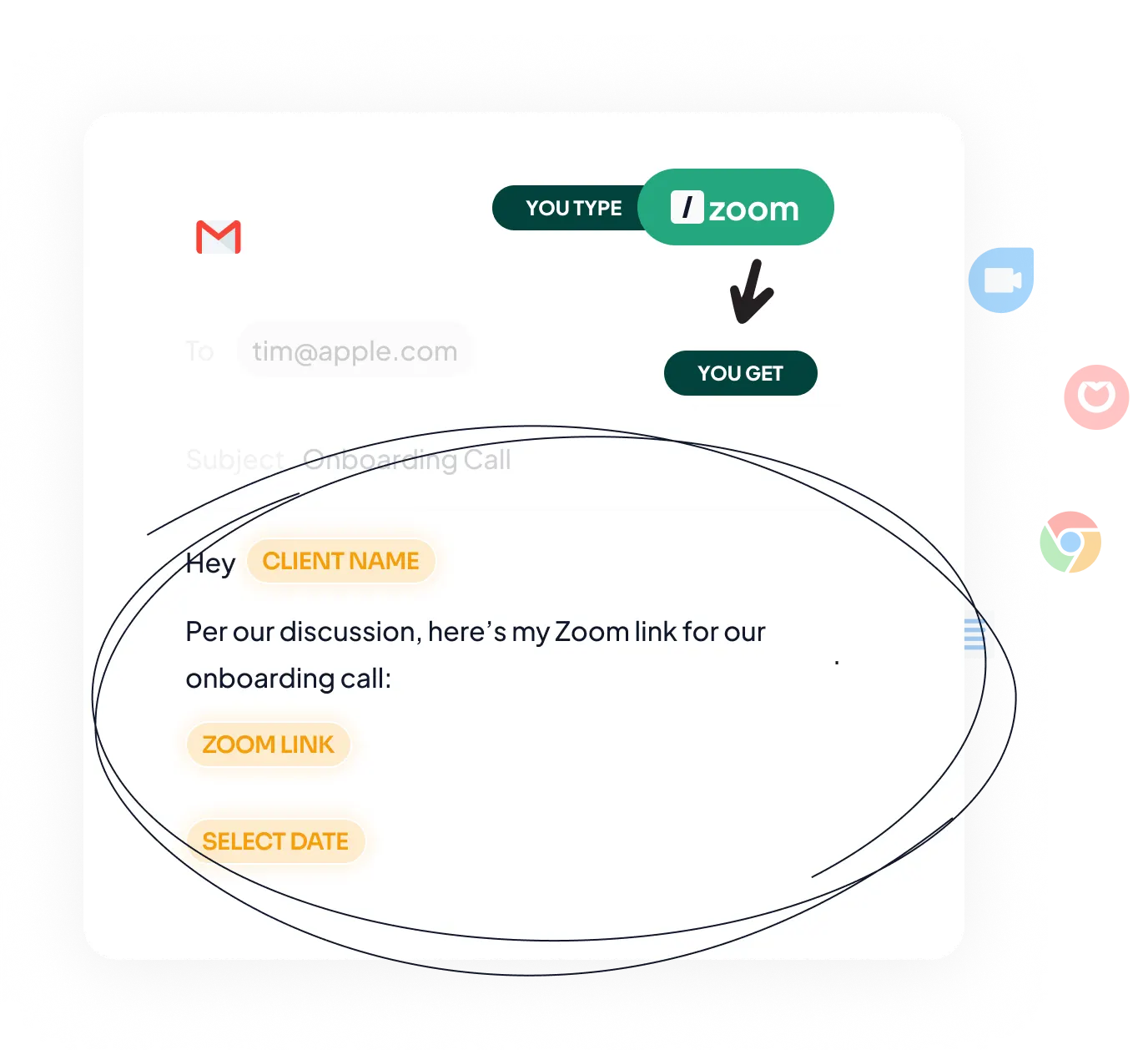
Why Gmail users need templates
Gmail is where follow-ups, intros, scheduling replies, and the same handful of answers get written again and again. Gmail does have a built-in templates feature, but it is buried in settings, is limited in number, lacks variables to personalize each message, and cannot be shared with a team or used outside Gmail.
What to save as a Gmail template:
- Intro and follow-up emails for sales or partnerships.
- Meeting scheduling and reschedule replies.
- Standard answers to billing, onboarding, or support questions.
- A formatted signature or a recurring disclaimer.
How it works
Set up Typedesk once and reuse your Gmail templates everywhere you type.
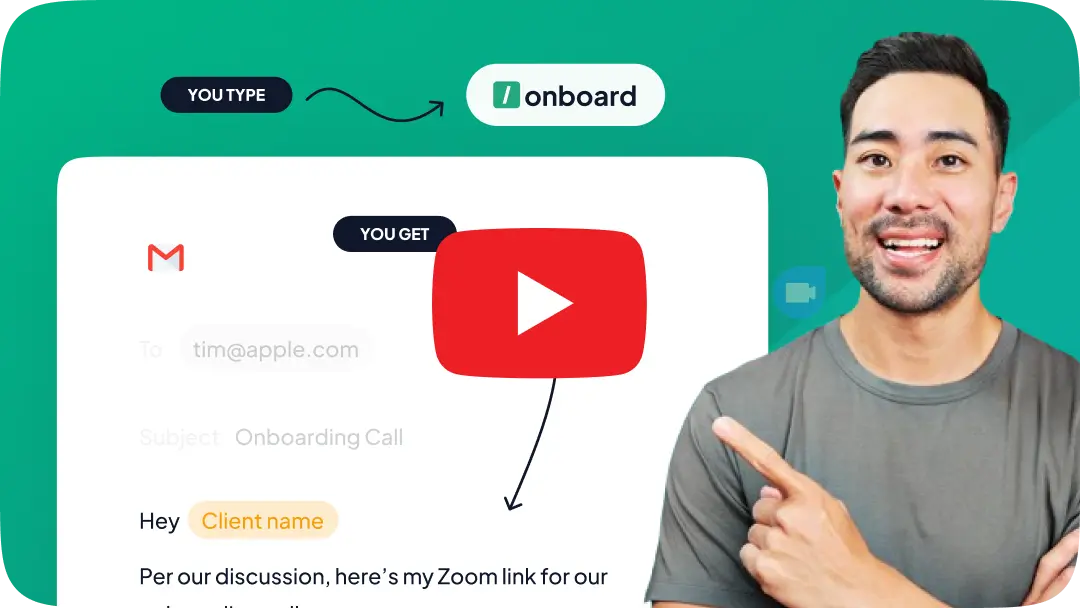
Install the Typedesk browser extension, plus the desktop app for Windows or Mac.
Save your most-used Gmail emails as templates, each with a short shortcut like /intro or /followup.
In Gmail, type the shortcut in the body or subject line and the full message expands instantly.
Use the same templates outside Gmail
This is what Gmail alone cannot do. The templates you build for Gmail are the same ones you use in Outlook, your help desk, Slack, and any web form, because Typedesk keeps a single library that follows you everywhere. Update the wording once, and it updates in every app, and teams can share one approved library.
The most powerful method to learn how to create Gmail templates
Typedesk text expander makes Gmail templates more powerful with advanced placeholders and sharing capabilities.
Create Gmail templates with fill-in variables
Creating Gmail templates using Typedesk text expander makes Gmail templates more powerful with advanced placeholders and sharing capabilities.
Fully integrated with Gmail
Typedesk templates work beautifully with Gmail, no integration needed.
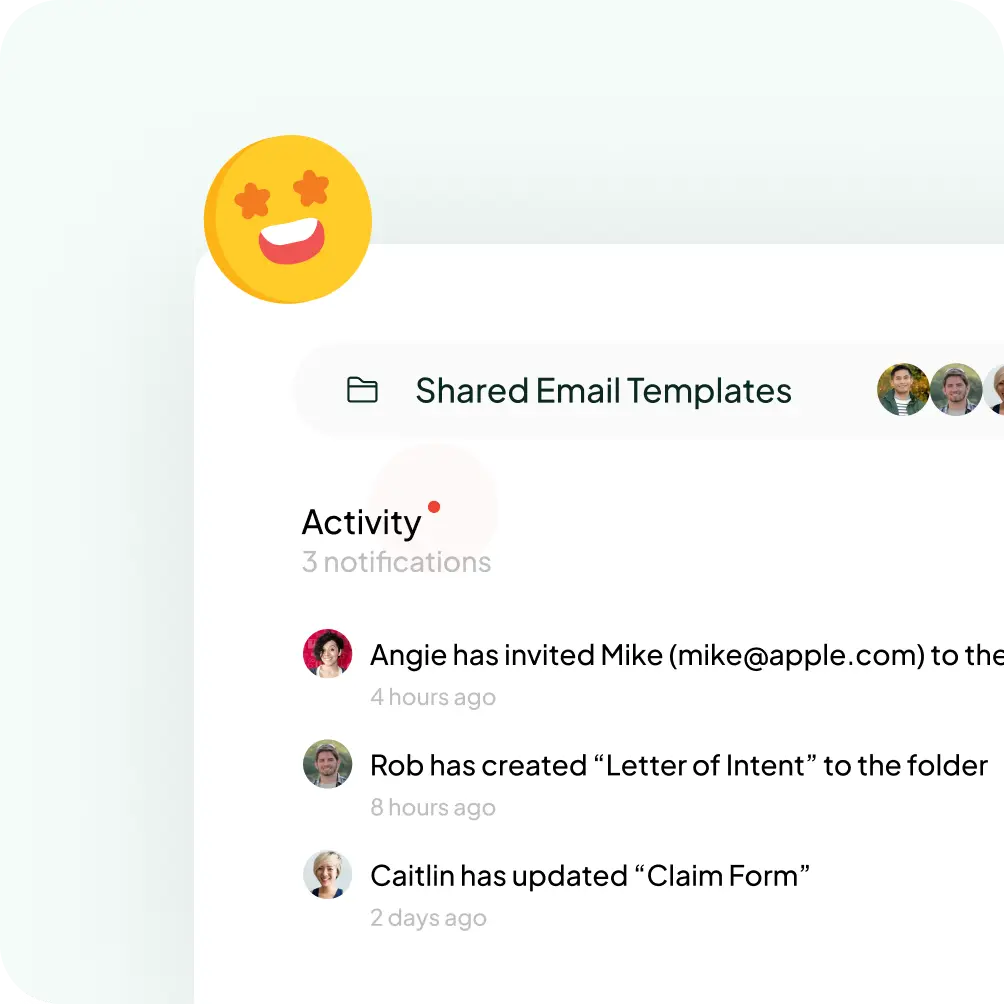
Easily share your Gmail templates
Unlike built-in Gmail templates, Typedesk makes sharing email templates possible and intuitive. Share your Gmail email templates with your team to ensure consistency.
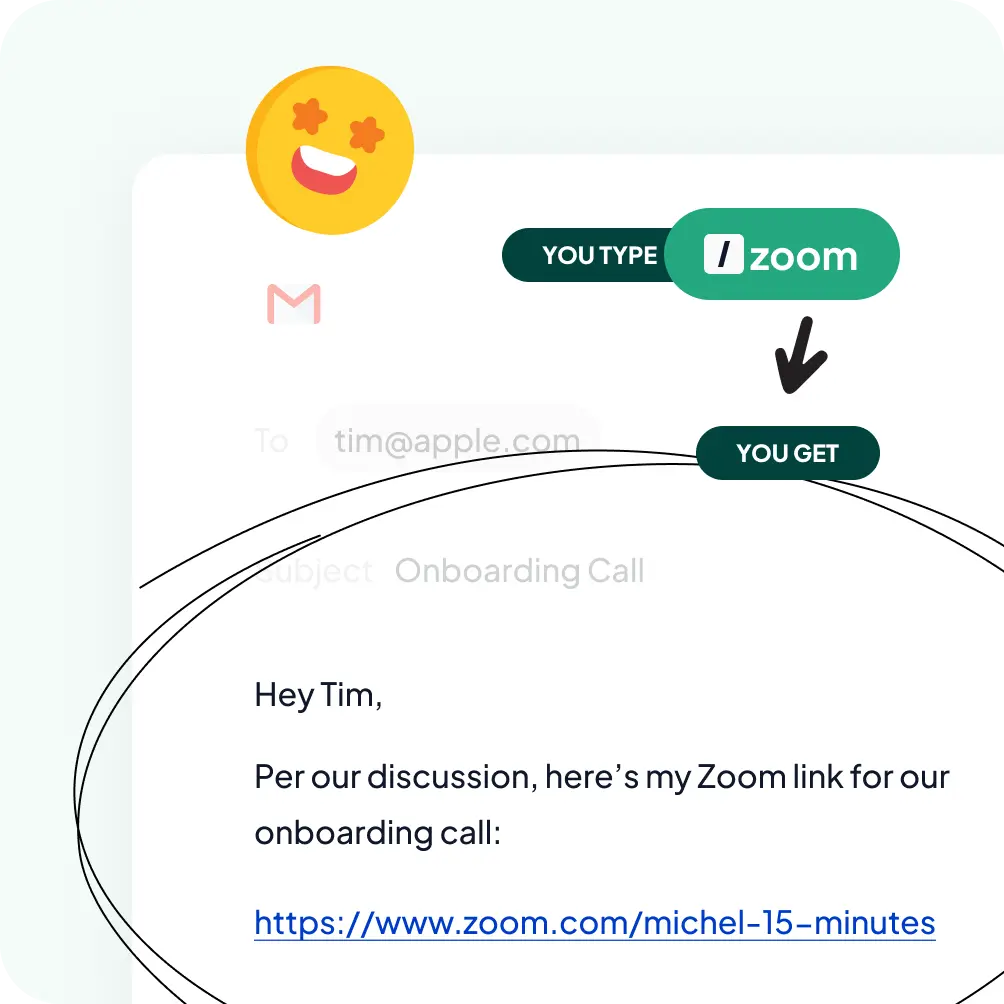
Insert your Gmail templates with a text shortcut
Unlike Gmail email templates, Typedesk templates can be used with a simple text shortcut of your choice.
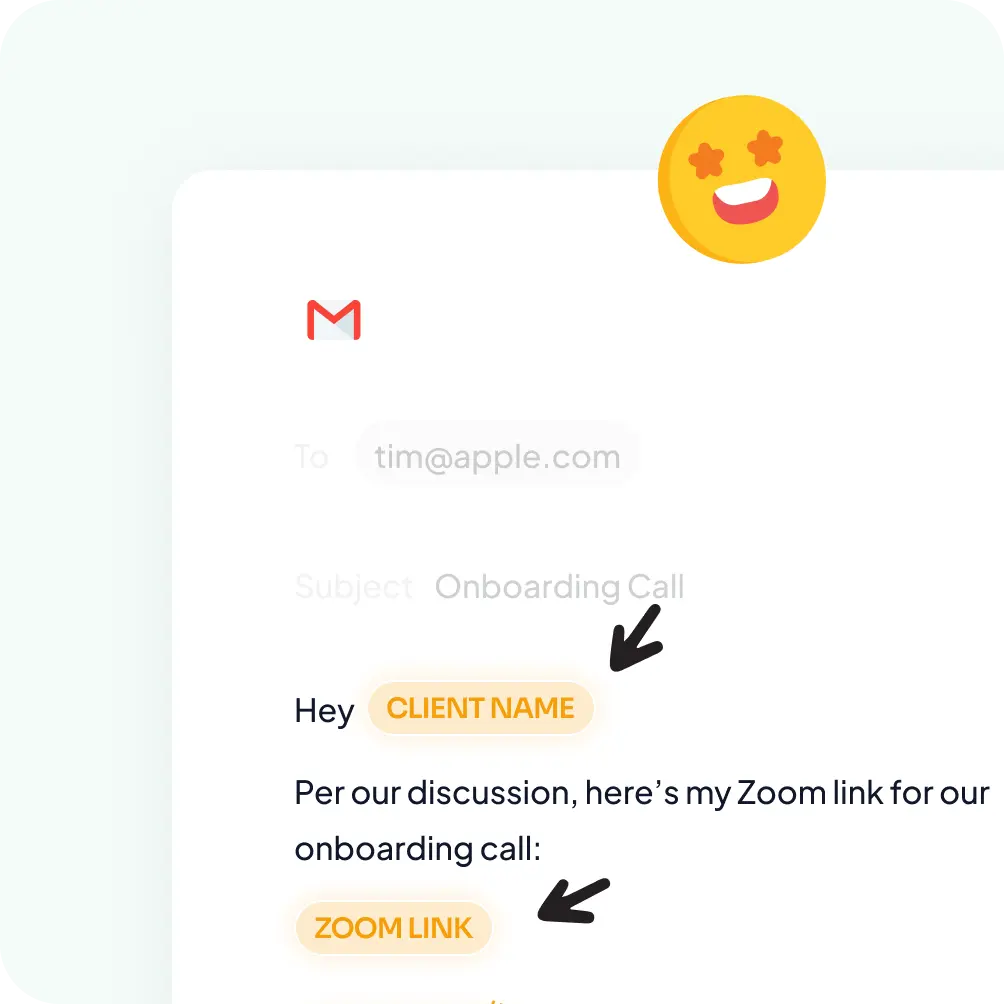

Gmail templates vs Typedesk
See how Typedesk compares to Gmail's built-in templates.
Features

Create templates with custom fill-in fields


Share templates with teammates
Insert templates with a text shortcut
Search templates by keyword
Organize templates into folders
Reuse the same templates across apps
Comparison covers the built-in reusable-message features available in each product's standard interface. Optional add-ins, mobile keyboards, developer APIs, and third-party tools are excluded.
Stop retyping in Gmail
Set up your most-used Gmail emails in Typedesk once and use the same shortcuts everywhere you type.
I love typedesk! It is by far one of my favourite tools to have in our tech stack.

Pip Meecham
Tech Advisor & ClickUp Channel Partner
We use typedesk to ensure that communications remain aligned and uniform across all our channels as our company scales up.

Michael Johnson
Senior Certification Specialist, HighLevel
This software is unreal. It's like having a ChatGPT writing assistant on every single app I use and having all the prompts I can create at my fingertips.

Michael Montefusco
Founder, Fitness Marketing Machine
This app is a phenomenal tool.

David Shutler
Senior Recruitment Consultant
While our help desk does provide saved answers, I use typedesk to maintain a personal voice in my canned responses quickly and efficiently.
Melanie Shears
Finance & People Operations, Customer Billing Specialist, Helpscout
A great productivity boost for me.

Upendra Singh Rathore
Co-founder, Chordius Digital LLP
Typdesk is a cross-platform tool that is highly valued by its developers and receives frequent updates. Although I sometimes encounter problems with new updates, the responsive team promptly fixes them. Overall, my experience with Typdesk has been excellent.

Natasha
HR Manager interested in upscaling orgs
Super easy to use with a clean interface. Useful tool.

Raul Estrela
Founder Tecla Digital on 2001.
This app is a totally time-saver. So amazing when it comes to typing reports and email messages when I want to save time.

Dr. Gwen Smith
Energy healing life coach
This is an amazing tool I have been using for about a year now. The latest version is super fast. I can prepare all the canned messages I usually use (I'm sure your like me and often use the same sentences ;). SO, it's a big THUMBS UP for Typedesk !

Ghislain DEMONDA
Everlasting learner
Great! It will surprise you

Truong Nguyen
SM
I can't live without typedesk. Every time I find myself typing something I've typed before, I add it to typedesk so I never have to manually type it again. The program is consistently maintained and faster than ever with the latest update. Will be a tool I use forever. I used to insert "Quick Parts" in my email, which is Outlook's version of canned text answers. It doesn't hold a candle to typedesk since I can use typedesk anywhere on my computer, not just email. It rocks.

Paul Colaianni
•
Oh mighty God, I pray for blessings upon Typedesk launching on Product Hunt today. This tool is of immense value to our team and we use it on a daily basis to streamline our work. I pray that it is well-received by the community and that it will be just as useful to others as it is to us. Please bless the developer and all those involved in bringing this great product to market. Amen.

Frank Sellingsloh
@frank_sellingsloh2
Started using it a few weeks ago... it's honestly a god send [can't believe it's the only solution out there of its type]... And the beauty of it is that it's reasonably priced, the team is responsive and it just works! Can't wait for the future of TypeDesk!

Emmanuel Lemor
@emmanuellemor
I use TextBlaze and I was looking for an alternative. typedesk is the perfect solution for me. The interface is clean and modern. It is easy to use and it works :) I am very happy with my purchase. Thank you guys from AS and typedesk for bringing this amazing deal to us!
MBO
We are a niche service industry and we get a bunch of leads and let me just say that takes up a lot of time when we could be using canned responses like a pro with typedesk. The idea is to free up time in responding so we all could use help with that I imagine. It pays for itself.
kor44
After trying others, looking at how they worked (or didn't), and looking at their features and prices I realized, this is one sweet deal. Its clean, simple and does its job. Support is quick to reply. Thank you.
woodennickel
I love automation, saving time and keystrokes, and minimizing typos - so I already had text expansion set up on my computer, but it didn't work in every app.
JimHohl
One of the best purchases on Appsumo!
iamsam
I have just bee using this for 10 days and I am already loving the way it integrates with different service desks. I could not actually find a competitive alternative to typedesk.
Gu
Typedesk is probably the only thing that made me want to keep my job as a chat agent. The quick search is absolutely amazing and fast, I have never seen a search like that. So many tags to make it easy. I have told my co-workers about this application, and I know some have tried it out. I am working on getting a team together. This is an absolute must for online support jobs.
Wingman835
This solution is super useful. I have many cases, where I can use it in my daily work.
m_b
I didn't think it was very useful for my small business but I tried it and within a day I purchased a code! It is so awesome and helpful. Saves me loads of time and I no longer make the mistake of putting someone else’s name in an email when copying the text. I use it to put in my brand color codes everywhere when needed, fast reply's and so much more. Really love it.
Puck
This is the kind of tool that is a bit underrated, it deserves even more love. I am sucker for time savings and improving my effiency and this tool does deliver. Love the ease of use and the way it makes me more productive even minutes after I started to use this. The only thing I need to do is to think when I type in something I reuse a lot, to make a canned response of it! Well deserved 5 taco's!
BossOfTime
Canned responses have been a fantastic way to save time during my onboarding process with clients along with the weekly/monthly reporting emails. Unfortunately, things got a little messy when testing out different CRMs, integrating emails, and dealing with the CRMs' built-in email templates PLUS my Gmail templates. With typedesk, this problem is solved!
JohnG23

Trusted by 15,000+ teams worldwide

Frequently asked questions
Common questions about Gmail templates and canned responses.
Visit learning center
 How to create an email template in Gmail?
How to add template to Gmail?
How to share a Gmail template?
how to set up template in gmail?
How to send email template in Gmail?
To send an email template in Gmail, you can use the built-in solution provided by Gmail itself. Here's how you can do it:
- Open Gmail and click on "Compose" to start a new email.
- In the email body, write or copy-paste the content of your email template.
- Customize the template with the necessary recipient information, subject, and any other relevant details.
- Once you have finalized the template, save it as a draft by clicking on the three dots at the bottom right corner of the compose window and selecting "Save draft."
- Whenever you need to use the email template, open the draft, make any required changes, and send it to the desired recipient.
While Gmail's built-in solution is a good starting point, if you're looking for a more advanced and efficient option, I recommend trying Typedesk's Gmail template builder. With Typedesk, you can create and manage professional email templates effortlessly. It provides a user-friendly interface where you can design visually appealing templates using HTML. With features like customization, easy access, and streamlined communication, Typedesk offers a superior alternative for creating and sending email templates in Gmail. Discover how to create template in Gmail with attachment and more advanced features with Typedesk.
Where are templates in Gmail?
When it comes to Gmail email templates, you can easily find them within Gmail itself. Gmail provides a built-in solution for creating and accessing email templates. Simply open Gmail, click on the "Compose" button, and then click the three dots at the bottom right corner of the compose window. From there, select "Templates" and choose "Save draft as template" to create your own reusable templates.
However, if you're looking for a more robust and efficient solution, Typedesk's Gmail template builder is a great alternative. With Typedesk, you can create personalized and dynamic email templates right within Gmail, allowing you to save time and ensure consistency in your communications. Typedesk offers a user-friendly interface and a wide range of features to enhance your email template creation process. Give it a try and experience the convenience of Typedesk's powerful Gmail template builder. Understand how to create an email template on Gmail with ease.
Does gmail have email templates?
Yes, Gmail does offer basic email templates.
Can you create an email template in Gmail?
Absolutely! Gmail provides a built-in solution to create email templates. You can easily craft your own templates using Gmail's formatting options and save them for future use. However, if you're looking for a more advanced and user-friendly option, Typedesk is an excellent alternative. With Typedesk's intuitive Gmail template builder, you can design custom HTML templates effortlessly, ensuring professional and visually appealing emails. It offers a range of features to enhance your email communication, saving you time and effort. Give Typedesk a try and elevate your Gmail email template experience to the next level! Learn how to create template in Gmail with attachment using Typedesk for a better experience.
Where are Gmail templates stored?
In Gmail, email templates are stored within your account and cannot be easily shared. However, Typedesk offers a superior solution as a Gmail template builder. With Typedesk, you can create and share HTML email templates effortlessly. It provides a user-friendly interface that allows you to design and customize templates, ensuring consistent and professional communication. Say goodbye to the limitations of Gmail's built-in solution and hello to Typedesk's seamless and collaborative approach for creating and sharing Gmail email templates. Learn how to create Gmail templates that can be shared easily.
Do you offer email signature template for gmail?
While we're not offering out-of-the-box templates, if you're looking for a way to elevate your email signature game with more dynamic and versatile options, Typedesk is your go-to solution. Typedesk offers a plethora of customizable canned responses, including sophisticated email signature templates that you can tailor to fit your unique style or brand identity. With Typedesk, you can effortlessly create and manage multiple signature templates for various purposes or roles. What's more, Typedesk integrates seamlessly with Gmail, among other platforms, making it incredibly easy to insert your stunning signatures directly into your emails.
What is an email template?
An email template is a piece of reusable content used in Gmail to compose messages quickly and consistently. It allows you to save time by not having to recreate the same content repeatedly. While Gmail offers a built-in solution for creating email templates, a better alternative is Typedesk. With Typedesk, you can access a user-friendly Gmail template builder that simplifies the process of designing and customizing your email templates. This powerful tool helps you create visually appealing and professional-looking templates in HTML format. Say goodbye to repetitive typing and hello to efficient and stylish emails with Typedesk's Gmail template builder. Discover how to create an email template on Gmail efficiently.
Can Gmail templates include attachments?
Gmail's built-in email template feature allows you to create reusable templates for your messages. However, it doesn't provide an option to include attachments directly within the template. If you're looking for a more versatile solution, Typedesk's Gmail template builder offers a better alternative. With Typedesk, you can create HTML-based email templates that support links to attachements, allowing you to easily include files and documents in your email drafts. Upgrade your email template experience with Typedesk and enhance your communication in Gmail. Learn how to create template in Gmail with attachment easily with Typedesk.
Sign up for FREE today
Join the text expander revolution. Get typedesk for you and your team today to reclaim your time!

Rated 4.8/5 over 300+ verified reviews
Useful resources
Automatically fill out Gmail subject and email
In this article, we will be discussing how to quickly fill forms using Typedesk's Form Filler. To demonstrate, we will be using a Gmail email as an example. By using the shortcut /call, in our example, Typedesk can automatically fill in both the subject and body of the email. This can be accomplished by utilizing a template, which consists of three parts: the subject, the body, and a special variable known as Tab Key. The Tab Key variable enables you to move seamlessly between different sections of the form / email. This can be particularly useful when filling out multiple input fields simultaneously. However, it is important to note that you must first click on the desired input field before using the Tab Key variable for it to work properly. By following these steps, Typedesk can save users time and streamline the form filling process.
How to create a Gmail Canned Response?
Canned responses are a great way to be more efficient at writing emails to customers, prospects, clients etc. Gmail offers a simple canned response feature that gets the job done. Here's how to create a canned response in Gmail. How to create a canned response in Gmail Open Gmail and click on the Compose email button. At the bottom right of the compose window, select the three dots to open the menu, and select "Templates". Select "Save draft as a template", and "Save as new template", or select an existing template if you want to replace one of your templates. create canned responses in gmail Current limitations of canned responses in Gmail Although this feature are a great way to get started with a few templates, you'll hit the limits of Gmail's current limitations quite quickly: There's no way to properly sort and organize your canned responses. You can't share your canned responses with someone else. Your canned responses are set in stone, meaning you can't customize it with placeholders and variables. You can't preview the contents of the canned responses before you insert them.
How to Add a Signature to Gmail: A Step-by-Step Guide
Email signatures have become an essential part of professional communication. They not only provide your contacts with vital information but also reflect your professionalism and brand identity. Gmail, being one of the most widely used email platforms, offers a straightforward process for adding a signature to your emails. This guide will walk you through the steps of setting up your email signature in Gmail, ensuring your emails leave a lasting impression. Step 1: Access Gmail Settings First, log in to your Gmail account and locate the gear icon in the upper right corner of your screen, which represents the “Settings” menu. Click on this icon, and from the dropdown menu that appears, select “See all settings.” This action will take you to the Gmail settings page, where you can customize various aspects of your email account. Step 2: Navigate to the Signature Settings Once you're in the Gmail settings page, you'll find several tabs at the top. Click on the “General” tab if it's not already selected by default. Then, scroll down until you find the “Signature” section. Here, you'll see an option to create a new signature or edit an existing one. Click on “Create new” to start crafting your signature. Step 3: Create Your Signature After clicking “Create new,” a dialog box will prompt you to name your signature. This name is just for your reference, especially useful if you plan to have multiple signatures for different purposes. After naming your signature, click “Create.” You'll then be presented with a text box where you can type in your desired signature content. This is where you can get creative! Typically, a professional email signature might include your full name, job title, company name (with or without the company logo), contact information (phone number, email address), and any social media links or websites you wish to share.
Live from our Blog Omnichannel Support Software: How to Choose the Right Tools